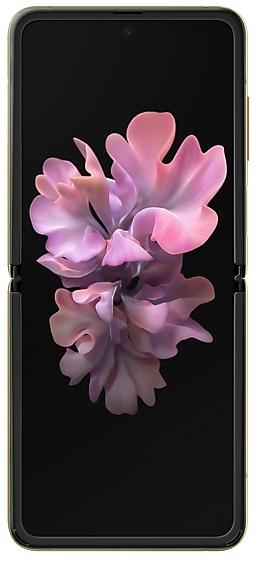
Samsung Galaxy Z Flip F700FTBUDKWH7 Firmware
Samsung Galaxy Z Flip F700FTBUDKWH7 is an Android 13 firmware for 9 countries, 9 CSC codes. It is the same firmware configured per region and carrier (CSC). Find your country below, verify the file and download for free. Compared with the previous build F700FXXUCJWF3: bootloader binary raised from C (12) to D (13), so after installing it there is no way back to older builds. A newer build for SM-F700F is available: F700FXXUEKZE3.
Bootloader binary D (13). Flashing firmware with a lower binary is usually blocked by Samsung anti-rollback.
All regional downloads
Pick your region (CSC) to download the matching firmware package.
No matching downloads
Device specifications
- Launched withAndroid 10.0
- Display diagonal17 cm (6.7")
- Display resolution2636 x 1080 pixels
- Display typeDynamic AMOLED
- Processor frequency2.95 GHz
- Processor familyQualcomm Snapdragon
- Processor model855+
- RAM8 GB
- Rear camera resolution12 MP
- Rear camera typeDual camera
- SIM cardsDual SIM
- Battery capacity3300 mAh
- Weight183 g
How to flash F700FTBUDKWH7
- Install Samsung USB Drivers:Download Official Drivers
- Download Odin Flash Tool:
- F700FTBUDKWH7 has bootloader binary D (13). Your device must run binary D (13) or lower: it is the 5th character from the end of your current build number.
- CSC: Use CSC for a clean install, to change the region (CSC code), to downgrade or to repair a device that does not boot.
- HOME_CSC: Use HOME_CSC to update the same model and region while keeping your data. Back up anyway: a failed update can still require a reset.
- The Download Mode key combo depends on the model: see all combos.
Frequently Asked Questions
Other builds and changelog for Samsung Galaxy Z Flip
• Security
The device is protected with improved security.
These changes may vary depending on the model, country, or network operator of the customer environment.
• Stability and reliability
Device behavior has been improved.
These changes may vary depending on the model, country, or network operator of the customer environment.
Show 15 older builds
• Overall stability of your device has been improved.
• The security of your device has been improved.
• Stability and reliability
Device behavior has been improved.
• Security
The device is protected with improved security.
Better app previews on the Recents screen
The Recents screen now shows apps as they will appear after you open them. You can easily see if an app is opened in split screen, full screen, or as a pop-up.
Easily switch from pop-up view to split screen
Press and hold the handle at the top of the pop-up window, then drag the app to the side of the screen where you want it to be shown.
Restore pop-ups snapped to the edge of the screen
Drag an app in pop-up view t...
Better app previews on the Recents screen
The Recents screen now shows apps as they will appear after you open them. You can easily see if an app is opened in split screen, full screen, or as a pop-up.
Easily switch from pop-up view to split screen
Press and hold the handle at the top of the pop-up window, then drag the app to the side of the screen where you want it to be shown.
Restore pop-ups snapped to the edge of the screen
Drag an app in pop-up view t...
Better app previews on the Recents screen
The Recents screen now shows apps as they will appear after you open them. You can easily see if an app is opened in split screen, full screen, or as a pop-up.
Easily switch from pop-up view to split screen
Press and hold the handle at the top of the pop-up window, then drag the app to the side of the screen where you want it to be shown.
Restore pop-ups snapped to the edge of the screen
Drag an app in pop-up view t...
• The Camera and Gallery functions have been improved.
• Security
The device is protected with improved security.