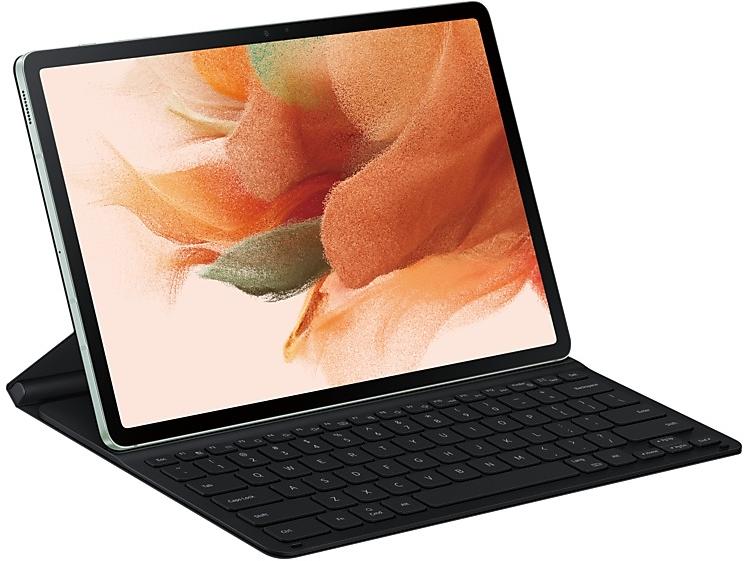
Samsung Galaxy Tab S7 FE T733XXU3CWE1 Firmware
Samsung Galaxy Tab S7 FE T733XXU3CWE1 is an Android 13 firmware for 8 countries, 9 CSC codes. It is the same firmware configured per region and carrier (CSC). Find your country below, verify the file and download for free. Compared with the previous build T733XXS3CWD1, Android and the bootloader binary are unchanged, so you can switch between the two in both directions. A newer build for SM-T733 is available: T733XXS9DYF1.
Bootloader binary 3. Flashing firmware with a lower binary is usually blocked by Samsung anti-rollback.
All regional downloads
Pick your region (CSC) to download the matching firmware package.
Device specifications
- Launched withAndroid 11
- Display diagonal31.5 cm (12.4")
- Display resolution2560 x 1600 pixels
- Processor frequency2.4 GHz
- Processor familySnapdragon
- Processor model778G
- Rear camera resolution8 MP
- Rear camera typeSingle camera
- Front camera resolution5 MP
- Wi-Fi standardWi-Fi 6 (802.11ax)
- Weight608 g
What's new in T733XXU3CWE1
One UI 5.1 Update
One UI 5.1 takes your tablet to the next level with new Gallery features as well as productivity and personalization enhancements.
More powerful search
You can now search your Gallery for more than one person or subject at the same time. You can even search for people without tagging their names just by tapping their faces.
Revamped info display
When you swipe up while viewing a picture or video in your Gallery, you can see when and where the picture was taken, which device took the picture, where the picture is stored, and more. Now with a simpler layout.
Easily minimize or switch to full screen
You can now minimize or maximize an app window without going to the options menu. Just drag one of the corners.
Access your most used apps in split screen
When you start a split-screen view, the apps you use most often will be shown below your recently used apps to help you find the apps you need faster.
Improved multitasking in DeX
In split-screen view, you can now drag the divider in the center of the screen to resize both windows. You can also snap a window to one of the corners to make it fill a quarter of the screen.
Change wallpapers based on your mode
Set a different wallpaper based on your current activity. Choose one wallpaper for work, one for exercising, and more.
More actions for routines
New actions let you control Quick Share and Touch sensitivity or change your font style.
Quick access to useful information
Check severe weather alerts, daily weather summaries, and sunrise/sunset times at the top of the Weather app. The temperature graph now uses colors to show how the temperature changes throughout the day.
Hourly precipitation graph
An hourly graph now shows how much precipitation has fallen at different times of the day.
Summary on Weather widget
A brief summary of the current weather conditions now appears on the weather widget to let you know if it's sunny, cloudy, raining, or snowing.
Continue browsing on another device
If you're browsing the web on one Galaxy phone or tablet and later open the Internet app on another Galaxy device signed in to the same Samsung account, a button will appear that lets you open the last webpage you were viewing on the other device.
Improved search
Your searches now include the names of bookmark folders and tab groups. Improved search logic lets you find what you're looking for even if something isn't spelled correctly.
Check the battery level of your devices
The new Battery widget lets you check the battery level of your devices, right from the Home screen. You can see how much battery is left on your tablet, Galaxy Buds, and other supported devices.
Settings suggestions
While signed in to your Samsung account, suggestions will appear at the top of the Settings screen to help you share, connect, and enhance your experience across your Galaxy devices.
Choose where to save screenshots and screen recordings
You can now change the folder where screenshots and screen recordings are saved.
How to flash T733XXU3CWE1
- Install Samsung USB Drivers:Download Official Drivers
- Download Odin Flash Tool:
- T733XXU3CWE1 has bootloader binary 3. Your device must run binary 3 or lower: it is the 5th character from the end of your current build number.
- CSC: Use CSC for a clean install, to change the region (CSC code), to downgrade or to repair a device that does not boot.
- HOME_CSC: Use HOME_CSC to update the same model and region while keeping your data. Back up anyway: a failed update can still require a reset.
- The Download Mode key combo depends on the model: see all combos.
Frequently Asked Questions
Other builds and changelog for Samsung Galaxy Tab S7 FE
• Security
The device is protected with improved security.
These changes may vary depending on the model, country, or network operator of the customer environment.
Show 15 older builds
New wallpaper editing features
Decorate your wallpaper however you like. When you select an image to use as your wallpaper, you can now apply frames and effects.
Customize alarm alerts
Use an image, video, or AR emoji to create your own custom alert screens for each alarm. You can even change the layout of where the alarm information appears on the screen.
More stickers to personalize your calendar
You can now add up to 2 stickers for each date on y...
New wallpaper editing features
Decorate your wallpaper however you like. When you select an image to use as your wallpaper, you can now apply frames and effects.
Customize alarm alerts
Use an image, video, or AR emoji to create your own custom alert screens for each alarm. You can even change the layout of where the alarm information appears on the screen.
More stickers to personalize your calendar
You can now add up to 2 stickers for each date on y...
New button layout
The quick panel has a new layout that makes it easier to access the features you use most. Wi-Fi and Bluetooth now have their own dedicated buttons at the top of the screen, while visual features, like Dark mode and Eye comfort shield have been moved to the bottom. Other quick settings buttons appear in a customizable area in the middle.
Instantly access the full quick panel
By default, a compact quick panel with notifications ap...
New button layout
The quick panel has a new layout that makes it easier to access the features you use most. WLAN and Bluetooth now have their own dedicated buttons at the top of the screen, while visual features, like Dark mode and Eye comfort shield have been moved to the bottom. Other quick settings buttons appear in a customizable area in the middle.
Instantly access the full quick panel
By default, a compact quick panel with notifications app...
Better app previews on the Recents screen
The Recents screen now shows apps as they will appear after you open them. You can easily see if an app is opened in split screen, full screen, or as a pop-up.
Easily switch from pop-up view to split screen
Press and hold the handle at the top of the pop-up window, then drag the app to the side of the screen where you want it to be shown.
Restore pop-ups snapped to the edge of the screen
Drag an app in pop-up view t...
Better app previews on the Recents screen
The Recents screen now shows apps as they will appear after you open them. You can easily see if an app is opened in split screen, full screen, or as a pop-up.
Easily switch from pop-up view to split screen
Press and hold the handle at the top of the pop-up window, then drag the app to the side of the screen where you want it to be shown.
Restore pop-ups snapped to the edge of the screen
Drag an app in pop-up view t...
Better app previews on the Recents screen
The Recents screen now shows apps as they will appear after you open them. You can easily see if an app is opened in split screen, full screen, or as a pop-up.
Restore pop-ups snapped to the edge of the screen
Drag an app in pop-up view to the edge of the screen to snap it to the edge and keep it out of the way. When you need it again, tap anywhere on the pop-up to bring it back to its previous location.
Taskbar...
• Overall stability of your device has been improved.
• The security of your device has been improved.
• Overall stability of your device has been improved.
• The latest Android security patch has been applied.
- Device security has been further enhanced.