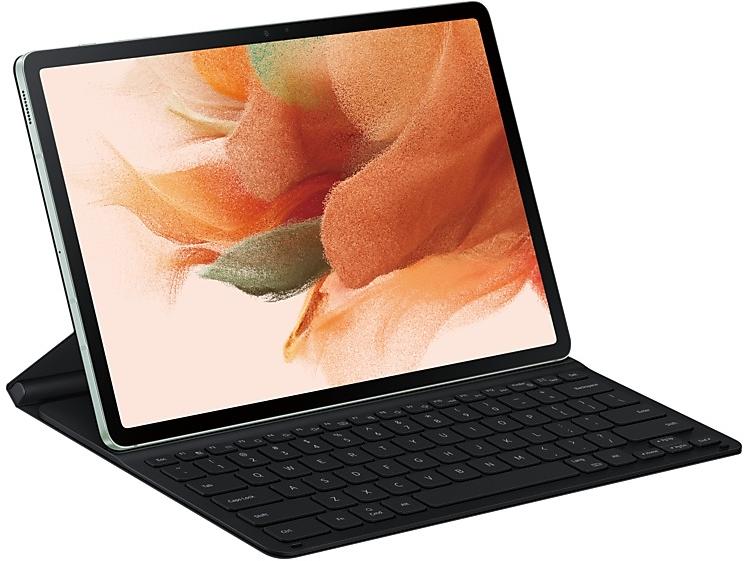
Samsung Galaxy Tab S7 FE T733ZCU1BVC4 Firmware
Samsung Galaxy Tab S7 FE T733ZCU1BVC4 is an Android 12 firmware for China (CHN). It is the same firmware configured per region and carrier (CSC). Find your country below, verify the file and download for free. Compared with the previous build T733XXU1AVA4: Android updated from Android 11 to Android 12; security patch 2022-01-01 instead of 2021-11-01. A newer build for SM-T733 is available: T733XXS9DYF1.
Bootloader binary 1. Flashing firmware with a lower binary is usually blocked by Samsung anti-rollback.
All regional downloads
Pick your region (CSC) to download the matching firmware package.
Device specifications
- Launched withAndroid 11
- Display diagonal31.5 cm (12.4")
- Display resolution2560 x 1600 pixels
- Processor frequency2.4 GHz
- Processor familySnapdragon
- Processor model778G
- Rear camera resolution8 MP
- Rear camera typeSingle camera
- Front camera resolution5 MP
- Wi-Fi standardWi-Fi 6 (802.11ax)
- Weight608 g
What's new in T733ZCU1BVC4
One UI 4.1 brings you a wide array of new features and enhancements for your Galaxy devices. More intuitive, more fun, more secure, and easier than ever.
Check out the changes below.
Customize your tablet with unique colors based on your wallpaper. Your colors will be applied to menus, buttons, backgrounds, and apps throughout your tablet.
One UI 4.1 offers strong privacy protection to make sure your personal information doesn’t fall into the wrong hands.
Permission info at a glance
See when each app accesses sensitive permissions such as Location, Camera, or Microphone in Permission usage. You can deny permissions for any apps you don’t feel comfortable with.
Camera and microphone indicators
Keep prying eyes and ears away. A green dot will appear in the upper right corner of the screen when any app is using the camera or microphone.
You can also use quick panel controls to temporarily block all apps from using the camera or microphone.
Approximate location
Keep your exact location private. You can set apps that don't need to know exactly where you are to only have access your general area.
Clipboard protection
Keep your passwords, credit card numbers, and other sensitive information safe. You can choose to receive an alert whenever an app accesses content copied to the clipboard in another app.
More than just typing, Samsung Keyboard is all about expressing yourself and having fun.
Quick access to GIFs, emojis, and stickers
Self-expression is a tap away. Get to your emojis, GIFs, and stickers directly from the keyboard with a single button.
Animated emoji pairs
Can’t find the right emoji? Combine two emojis together, then add an animation to really get your feelings across.
Even more stickers
Spice up your conversations with a variety of new animated stickers available to download.
It all starts on the Home screen, where your favorite apps and features are just a tap away. One UI 4 helps you keep your home screen looking its best all the time.
New widget design
Widgets have been redesigned to look better than ever, with info that’s easy to see at a glance and a more consistent style.
Easier widget selection
Having trouble finding the right widget? You can now quickly scroll through the widget list to see what’s available from each app. You’ll also get recommendations for useful widgets to try out.
Use widgets to handle quick tasks without unlocking your tablet, whether it’s controlling your music, checking your schedule, or capturing your best ideas.
Listen where you want
Switch audio output from buds to speakers to your tablet, all from the Lock screen.
Voice recording
Got a great idea? Record a voice memo without unlocking your tablet.
Calendar and schedule at once
Check today’s schedule along with your calendar for the rest of the month on the Lock screen.
Enjoy a simpler layout while you take pictures and videos. The scene optimizer button only appears in Photo mode if there’s low light or you’re scanning a document. Night mode settings are now tucked away and more intuitive.
Lens and zoom
Lens icons show the magnification level, so you know how much you’re zoomed in.
Video that never misses a moment
Recording starts immediately after you tap the Record button, instead of when you release it, so that you catch those precious moments before they’re gone. In Photo mode, you can touch and hold the Shutter button to start recording a quick video, then drag your finger to the Lock icon to continue recording without holding down the Shutter.
Pro photography
Stay in control with the redesigned Pro mode settings. The cleaner look helps you focus on the shot.
Enhanced scanning
Scan documents, then tap the magnifying glass to zoom in and edit them immediately. You can also do more after scanning QR codes, like emailing someone instead of just adding their contact info to your tablet.
Whether you’ve got thousands of pictures and videos or just a few treasured moments, Gallery makes it easier to find what you need and keep your collection organized.
Enhanced stories
See your stories come to life with highlight videos that are created automatically. Just tap the preview at the top of each story to watch. You can also explore where the pictures in your stories were taken in the new Map view.
Easier albums
Sort through albums more easily—even if they’ve got tons of pictures. In fact, you can sort albums by how many pictures and videos they contain so that your favorite and most used albums are always at the top of the list. A cover image also appears at the top of the screen when you view an album to give you a better feel for what the album contains.
Worry-free remastering
Revert remastered pictures to their original versions at any time, even after they’re saved, so you never have to worry about losing the original.
More control over information
Change or remove the date, time, and location of your pictures to correct it or keep it private. You can also select several pictures and edit their information at once.
Sometimes your photos and videos need a few tweaks. One UI’s Photo and Video editors are there to make your pictures look their best before you share them.
Emojis and stickers
Use an emoji to cover the face of a shy friend or add stickers to create fun pictures and videos.
Video collages
Make moving collages that include pictures, videos, or a combination of both. Pick out the perfect moments and create your masterpiece.
Lighting control
Picture too dark because of bad lighting? The new Light balance feature helps you pull out all the details to make it look great.
Highlight reels
Easily turn a set of pictures and videos into a beautiful movie. Just choose a theme, and the AI will add the music and transitions automatically.
Never lose the original
Get bold with your editing! You can now revert both pictures and videos back to their original versions after they’re saved, or save them as copies to keep both the original and edited versions.
Paste from one picture to another
Experiment with mixing and matching faces, pets, buildings, and more. You can cut any object out of one picture and paste it into a different one.
One UI helps you stay connected and share your experiences with others. Just tap the Share button in any app.
More customization
Make sharing your own. You can customize the list of apps that appear when you share content to keep the clutter away and focus only on the apps you use regularly.
Easier navigation
New layout and better navigation makes sharing a breeze. Swipe left or right to scroll through apps and contacts when you’re sharing.
One UI 4.1 makes it even easier to keep your busy life organized.
Check your schedule on the Home screen
A new widget shows your schedule for the day along with a full calendar for the month.
Quick add events
Need to add something to your calendar in a hurry? Just enter a title and you’re done.
More search options
You’ve got more ways than ever to find your calendar events. Choose from recent search keywords or filter by color or sticker.
Share with others
Sometimes you need to keep others in the loop. It’s now easier to share your calendars with other Galaxy users.
Easier date and time selection
Setting event details is a breeze with separate date and time options.
Recover deleted events
Events you delete will stay in the Trash for 30 days so you can get them back if you need them.
One UI’s fast and secure web browser now makes it even easier to find the webpages you’re looking for and protect your privacy.
Search suggestions
Get more search suggestions when you enter text in the address bar. Results will appear with an all new design.
Search from the Home screen
The new search widget helps you find what you’re looking for, right from the Home screen.
Start in Secret mode
To protect your privacy, Samsung Internet will automatically start in Secret mode if you were using Secret mode during your last browsing session.
See your tablet’s performance, security, and battery life at a glance, solve problems quickly, and get deep diagnostics for more complex issues.
Battery and security at a glance
Battery and security issues will appear right on the main screen so you can solve problems more quickly.
Understand your tablet’s overall status
Your tablet’s overall status is shown as an emoji, so you can understand instantly.
Make your tablet do more for you. Turn on WLAN automatically when you come home, or set your tablet to silent when you’re at work. One UI 4 gives you even more possibilities.
More conditions
More conditions are available for your routines. Start a routine when a certain notification arrives.
More actions
You can now turn on Enhanced processing with a routine. There are also more options such as connecting and disconnecting Bluetooth devices.
More control
Reorder actions by touching and holding actions on the edit page. Advanced options have also been added to let you wait before an action starts, confirm actions, and more.
More combinations
We’ve removed restrictions for some combinations of conditions and actions so you can do even more with your routines.
More customization
Create custom icons for your routines using the Camera or an image from Gallery.
One UI is designed for everyone. In One UI 4, you’ll get even more options to help you use your tablet in the way that’s most comfortable for you.
Always there when you need it
Access accessibility features more quickly with a floating button that’s always available.
Mouse gestures
Perform actions more quickly by moving your mouse pointer to one of the 4 corners of the screen.
Adjust your screen at once
Adjust contrast and size at the same time with custom Display mode (High contrast or Large display).
Eye comfort
More visibility options are available to meet your needs. You can reduce transparency or blur.
Extra dim screen
If your screen is too bright, even at the lowest brightness setting, turn on Extra dim for more comfortable reading in the dark.
Customizable flash notifications
Make the screen flash when you receive a notification. You customize colors for each app so you can easily determine where a notification is coming from.
Easier magnification
Magnifier window has been merged with the new Magnification menu, giving you more options and more control for magnifying content on the screen.
Enhanced Dark mode
To keep you comfortable in the dark, Dark mode now automatically dims wallpapers and icons. Illustrations in Samsung apps now have Dark mode versions with darker colors for a more consistent experience that’s easier on your eyes.
Charging info at a glance
When you start charging, different visual effects let you know your charging speed more intuitively.
Easier brightness control
A bigger brightness bar in the quick panel makes it easier to change screen brightness with a swipe.
Tips preview videos
Learn more about what your Galaxy can do with preview videos on the main screen of the Tips app.
Settings search enhancements
Improved search features help you find the settings you need, when you need them. You’ll get suggestions for related features depending on what you search for.
Keep your eyes on the road
The new Driving monitor in Digital Wellbeing keeps track of when you use your tablet while driving. You’ll get reports on how much you used your tablet and which apps you used.
Skip an alarm just once
Feel like sleeping in? You can now turn off an alarm just for one occurrence. It will turn back on automatically after it’s skipped.
Day or night at a glance
Have a friend on the other side of the world? It’s easier to see if it’s a good time to contact them. The dual clock widget now shows different background colors for each city depending on whether it’s day or night.
Easier search in My Files
Find the file you’re looking for, even if there’s a typo or the name doesn’t match exactly. The Recent files area has also been expanded to help you quickly locate files you’ve used or received recently.
More complete desktop experience
More apps are resizable in Samsung DeX, so you can multitask and get more done throughout the day. You can also change the touchpad scrolling direction in DeX settings to match your personal preference.
Resizable picture-in-picture
If a floating video is getting in the way, pinch your fingers together to make it smaller. Want to see more? Spread your fingers apart to make it bigger.
Quick access to pop-up window options
For easier multitasking, you can pin the window options menu to the top of the window to make it easier to access.
Some apps will need to be updated separately after the One UI 4.1 upgrade.
How to flash T733ZCU1BVC4
- Install Samsung USB Drivers:Download Official Drivers
- Download Odin Flash Tool:
- T733ZCU1BVC4 has bootloader binary 1. Your device must run binary 1 or lower: it is the 5th character from the end of your current build number.
- CSC: Use CSC for a clean install, to change the region (CSC code), to downgrade or to repair a device that does not boot.
- HOME_CSC: Use HOME_CSC to update the same model and region while keeping your data. Back up anyway: a failed update can still require a reset.
- The Download Mode key combo depends on the model: see all combos.
Frequently Asked Questions
Other builds and changelog for Samsung Galaxy Tab S7 FE
• Security
The device is protected with improved security.
These changes may vary depending on the model, country, or network operator of the customer environment.
Show 15 older builds
New wallpaper editing features
Decorate your wallpaper however you like. When you select an image to use as your wallpaper, you can now apply frames and effects.
Customize alarm alerts
Use an image, video, or AR emoji to create your own custom alert screens for each alarm. You can even change the layout of where the alarm information appears on the screen.
More stickers to personalize your calendar
You can now add up to 2 stickers for each date on y...
New wallpaper editing features
Decorate your wallpaper however you like. When you select an image to use as your wallpaper, you can now apply frames and effects.
Customize alarm alerts
Use an image, video, or AR emoji to create your own custom alert screens for each alarm. You can even change the layout of where the alarm information appears on the screen.
More stickers to personalize your calendar
You can now add up to 2 stickers for each date on y...
New button layout
The quick panel has a new layout that makes it easier to access the features you use most. Wi-Fi and Bluetooth now have their own dedicated buttons at the top of the screen, while visual features, like Dark mode and Eye comfort shield have been moved to the bottom. Other quick settings buttons appear in a customizable area in the middle.
Instantly access the full quick panel
By default, a compact quick panel with notifications ap...
New button layout
The quick panel has a new layout that makes it easier to access the features you use most. WLAN and Bluetooth now have their own dedicated buttons at the top of the screen, while visual features, like Dark mode and Eye comfort shield have been moved to the bottom. Other quick settings buttons appear in a customizable area in the middle.
Instantly access the full quick panel
By default, a compact quick panel with notifications app...
Better app previews on the Recents screen
The Recents screen now shows apps as they will appear after you open them. You can easily see if an app is opened in split screen, full screen, or as a pop-up.
Easily switch from pop-up view to split screen
Press and hold the handle at the top of the pop-up window, then drag the app to the side of the screen where you want it to be shown.
Restore pop-ups snapped to the edge of the screen
Drag an app in pop-up view t...
Better app previews on the Recents screen
The Recents screen now shows apps as they will appear after you open them. You can easily see if an app is opened in split screen, full screen, or as a pop-up.
Easily switch from pop-up view to split screen
Press and hold the handle at the top of the pop-up window, then drag the app to the side of the screen where you want it to be shown.
Restore pop-ups snapped to the edge of the screen
Drag an app in pop-up view t...
Better app previews on the Recents screen
The Recents screen now shows apps as they will appear after you open them. You can easily see if an app is opened in split screen, full screen, or as a pop-up.
Restore pop-ups snapped to the edge of the screen
Drag an app in pop-up view to the edge of the screen to snap it to the edge and keep it out of the way. When you need it again, tap anywhere on the pop-up to bring it back to its previous location.
Taskbar...
• Overall stability of your device has been improved.
• The security of your device has been improved.
• Overall stability of your device has been improved.
• The latest Android security patch has been applied.
- Device security has been further enhanced.