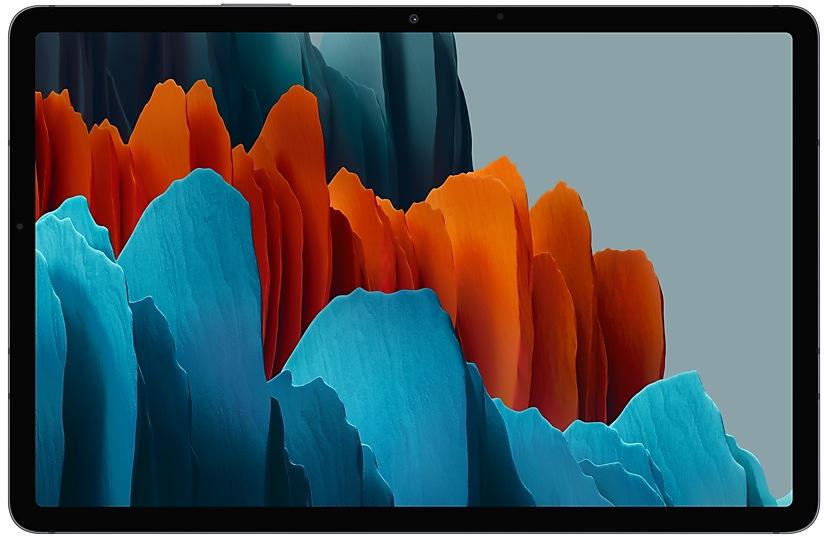
Samsung Galaxy Tab S7 T875XXU4DWH3 Firmware
Samsung Galaxy Tab S7 T875XXU4DWH3 is an Android 13 firmware for 56 countries, 66 CSC codes. It is the same firmware configured per region and carrier (CSC). Find your country below, verify the file and download for free. Compared with the previous build T875XXU3DWD3: bootloader binary raised from 3 to 4, so after installing it there is no way back to older builds; security patch 2023-07-01 instead of 2023-05-01. A newer build for SM-T875 is available: T875XXU8DZB1.
Bootloader binary 4. Flashing firmware with a lower binary is usually blocked by Samsung anti-rollback.
All regional downloads
Pick your region (CSC) to download the matching firmware package.
No matching downloads
Device specifications
- Display diagonal27.9 cm (11")
- Display resolution2560 x 1600 pixels
- Processor frequency1.8 GHz
- Processor familyQualcomm Snapdragon
- Processor model865+
- Rear camera resolution13 MP
- Rear camera typeDual camera
- Front camera resolution8 MP
- Wi-Fi standardWi-Fi 6 (802.11ax)
- Weight500 g
What's new in T875XXU4DWH3
Better app previews on the Recents screen
The Recents screen now shows apps as they will appear after you open them. You can easily see if an app is opened in split screen, full screen, or as a pop-up.
Easily switch from pop-up view to split screen
Press and hold the handle at the top of the pop-up window, then drag the app to the side of the screen where you want it to be shown.
Restore pop-ups snapped to the edge of the screen
Drag an app in pop-up view to the edge of the screen to snap it to the edge and keep it out of the way. When you need it again, tap anywhere on the pop-up to bring it back to its previous location.
Check minimized apps with the S Pen
Hover your S Pen above a floating app icon to see a preview of how the app will appear when you open it.
More recent apps
You can now choose how many recently used apps to show on the taskbar (up to 4).
Share files privately
Protect private content when you share it. You can set expiration dates for the files you send, cancel sharing at any time, and prevent recipients from saving or resharing.
More date and time styles for watermarks
Customize the date and time separately with more style options to get the perfect look for your watermark.
Enhanced remaster previews
Thumbnail images are now shown below the image you're remastering. Tap a thumbnail to compare the remastered image to the original with a larger view.
Apply effects more easily
Filter and tone effects in Gallery now use a dial instead of a slider making it easier to make precise adjustments with just one hand.
Copy and paste effects
You can now copy and paste filters and tones from one picture you’ve edited to another.
Drag and drop with two hands
Start dragging files, app icons, or other items with one hand, then use your other hand to navigate to the folder or location where you want to drop them. Supported in My Files and the Home screen.
Keep storage space available
When you’re running low on space in your internal storage, app cache information will be shown when you analyze storage in My Files. Clearing app caches can help you free up space without deleting files or apps.
Enhanced memory management in Device care
More information is provided about apps using memory on your tablet, giving you the option to put apps to sleep if too much memory is being used.
Change your mode from the Lock screen
Change between Sleep mode, Driving mode, and other modes directly from the Lock screen.
Customize your layout in Samsung Internet
You can now make the taskbar appear at the bottom of the screen. When you do this, the tab bar and bookmark bar will also be shown at the bottom.
How to flash T875XXU4DWH3
- Install Samsung USB Drivers:Download Official Drivers
- Download Odin Flash Tool:
- T875XXU4DWH3 has bootloader binary 4. Your device must run binary 4 or lower: it is the 5th character from the end of your current build number.
- CSC: Use CSC for a clean install, to change the region (CSC code), to downgrade or to repair a device that does not boot.
- HOME_CSC: Use HOME_CSC to update the same model and region while keeping your data. Back up anyway: a failed update can still require a reset.
- The Download Mode key combo depends on the model: see all combos.
Frequently Asked Questions
Other builds and changelog for Samsung Galaxy Tab S7
• Stability and reliability
Device behavior has been improved.
These changes may vary depending on the model, country, or network operator of the customer environment.
• Improved multitasking usability.
- Added a three-split view function on the multi-window.
- Added a switching function between pop-up view and split screen view by long pressing.
- Added a function to open a split screen by dragging the screen.
• Improved Edge panel usability.
- Added a Pin feature to pin apps to the Edge panel.
- Changed the background screen so that it is not blurry when the Edge panel is on.
• Supports Labs feature.
• Added a function to remaster desired photos.
Show 15 older builds
Better app previews on the Recents screen
The Recents screen now shows apps as they will appear after you open them. You can easily see if an app is opened in split screen, full screen, or as a pop-up.
Easily switch from pop-up view to split screen
Press and hold the handle at the top of the pop-up window, then drag the app to the side of the screen where you want it to be shown.
Restore pop-ups snapped to the edge of the screen
Drag an app in pop-up view t...
Better app previews on the Recents screen
The Recents screen now shows apps as they will appear after you open them. You can easily see if an app is opened in split screen, full screen, or as a pop-up.
Easily switch from pop-up view to split screen
Press and hold the handle at the top of the pop-up window, then drag the app to the side of the screen where you want it to be shown.
Restore pop-ups snapped to the edge of the screen
Drag an app in pop-up view t...
• Overall stability of your device has been improved.
• The latest Android security patch has been applied.
- Device security has been further enhanced.
One UI 5.1 Update
One UI 5.1 takes your tablet to the next level with new Gallery features as well as productivity and personalization enhancements.
Quickly change the color tone for selfies
It's easier to change the color tone of your selfies using the Effects button on the side of the screen.
More powerful search
You can now search your Gallery for more than one person or subject at the same time. You can even search for people without tagging their names just by tapping...
One UI 5.1 Update
One UI 5.1 takes your tablet to the next level with new Gallery features as well as productivity and personalization enhancements.
Quickly change the color tone for selfies
It's easier to change the color tone of your selfies using the Effects button on the side of the screen.
More powerful search
You can now search your Gallery for more than one person or subject at the same time. You can even search for people without tagging their names just by tapping...
One UI 5 brings you more powerful personalization and makes it easier to get things done across your Galaxy devices.
New app icons and illustrations
Icon symbols are larger for a bolder look that's easier to scan. Subtle background gradients and improved contrast give a fresher, more natural feel. New help illustrations have been created to give a consistent look to all apps.
Smoother than ever before
New animations and transition effects make swi...