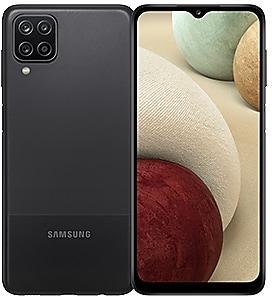
Samsung Galaxy Tab A8 X205CZCU3DXB3 Firmware
Samsung Galaxy Tab A8 X205CZCU3DXB3 is an Android 14 firmware for China (CHC). It is the same firmware configured per region and carrier (CSC). Find your country below, verify the file and download for free. Compared with the previous build X205CZCU3CWI4 https://samfirm.shop/build/X205CZCU3CWI4: Android updated from Android 13 to Android 14; security patch 2023-12-01 instead of 2023-07-01. A newer build for SM-X205C is available: X205CZCS6DYG6 https://samfirm.shop/build/X205CZCS6DYG6.
Bootloader binary 3. Flashing firmware with a lower binary is usually blocked by Samsung anti-rollback.
All regional downloads
Pick your region (CSC) to download the matching firmware package.
Device specifications
- Launched withAndroid 11
- Display diagonal26.7 cm (10.5")
- Display resolution1920 x 1200 pixels
- Display technologyLCD
- Rear camera resolution8 MP
- Front camera resolution5 MP
- Wi-Fi standardWi-Fi 5 (802.11ac)
- Weight508 g
Specifications of SM-X205N, a regional variant of the same device. Chipset and SIM lines are left out: they can differ by region.
What's new in X205CZCU3DXB3
New button layout
The quick panel has a new layout that makes it easier to access the features you use most. WLAN and Bluetooth now have their own dedicated buttons at the top of the screen, while visual features, like Dark mode and Eye comfort shield have been moved to the bottom. Other quick settings buttons appear in a customizable area in the middle.
Instantly access the full quick panel
By default, a compact quick panel with notifications appears when you swipe down from the top of the screen. Swiping down again hides notifications and shows the expanded quick panel. If you turn on Quick settings instant access, you can view the expanded quick panel by swiping just once from the right side of the top of the screen. Swiping down from the left side shows notifications.
Quickly access brightness control
The brightness control bar now appears by default in the compact quick panel when you swipe down once from the top of the screen for quicker and easier brightness adjustments.
Improved album art display
While playing music or videos, album art will cover the entire media controller in the notification panel if the app playing the music or video provides album art.
Enhanced layout for notifications
Each notification now appears as a separate card, making it easier to recognize individual notifications.
More vivid notification icons
You can use the same icons that are used for each app on the Home screen. You can turn this on in Settings.
Sort notifications by time
You can now change your notification settings to sort by time instead of priority so your newest notifications are always on top.
Reposition your clock
You now have more freedom to move your clock to the position of your choice on the Lock screen.
Simplified icon labels
App icon labels are now limited to a single line for a cleaner and simpler look. "Galaxy" and "Samsung" have been removed from some app names to make them shorter and easier to scan.
Keep pop-up windows open
Instead of minimizing pop-up windows when you go to the Recents screen, pop-ups will now remain open after you leave the Recents screen so you can continue what you were working on.
New emoji design
Emojis that appear in your messages, social media posts, and elsewhere on your tablet have been updated with a fresh new design.
Picture previews
When you share pictures from any app, preview images will appear at the top of the Share panel to give you one more chance to review the pictures before sharing them.
Enhanced illustrations
Illustrations in the Weather widget and app have been enhanced to provide better information about the current weather conditions. Background colors also change depending on the time of the day.
Simple and intuitive design
The overall layout of the Camera app has been simplified. Quick settings buttons on the preview screen have been redesigned to be easier to understand.
More alignment options for watermarks
You can now choose whether your watermark appears at the top or bottom of your photos.
Easier video size options
A pop-up now appears when you tap the video size button, making it easier to see all the options and choose the right ones.
Apply effects more easily
Filter and face effects now use a dial instead of a slider making it easier to make precise adjustments with just one hand.
Drag and drop with 2 hands
Touch and hold pictures and videos with one hand, then use your other hand to navigate to the album where you want to drop them.
Enhanced story view
While viewing a story, a thumbnail view appears when you swipe up from the bottom of the screen. In thumbnail view, you can add or remove pictures and videos from your story.
Enhanced layout
The new Tools menu makes it easier to find the editing features you need. Straighten and Perspective options have been combined in the Transform menu.
Adjust decorations after saving
You can now make changes to drawings, stickers, and text that you've added to a photo even after saving.
Undo and redo
Don't worry about making mistakes. You can now easily undo or redo transformations, filters, and tones.
Draw on custom stickers
When creating custom stickers, you can now use the drawing tools to make your stickers even more personal and unique.
Enhanced layout
Video player controls are now easier than ever. Buttons with similar functions have been grouped together, and the Play button has been moved to the center of the screen.
Your schedule at a glance
The new schedule view provides your upcoming events, tasks, and reminders all together in chronological order.
View your reminders in Calendar
You can now view and add reminders in the Calendar app without opening the Reminder app.
Move events with 2 hands
In Day or Week view, touch and hold the event you want to move with one hand, then use your other hand to navigate to the day where you want to move it.
Refined reminder list view
The main list view has been redesigned. You can manage categories at the top of the screen. Below the categories, your reminders will be shown organized by date. The layout for reminders containing images and web links has also been enhanced.
New reminder categories
The Place category contains reminders that alert you when you're in a specific place, and the No alert category contains reminders that don't provide any alerts.
More options for creating reminders
When sharing content to the Reminder app, you'll get full editing options before your reminder is created. You can also take pictures using the camera when creating a reminder.
Create all-day reminders
You can now create reminders for an entire day and customize the time you want to be alerted about them.
Play videos in the background
Keep playing video sound even if you leave the current tab or leave the Internet app.
Enhanced tab list view for large screens
When using Internet on a large screen, such as a tablet in landscape view, tab list view will be shown in 2 columns so you can see more information on the screen at the same time.
Move bookmarks and tabs with 2 hands
Touch and hold the bookmark or tab you want to move with one hand, then use your other hand to navigate to the bookmark folder or tab group where you want to move it.
New conditions
You can now start a routine when an app is playing media.
New actions
Your routines can now do more than ever before, such as changing your Samsung Keyboard settings.
Quick actions for apps
When an app appears in your search results, you can touch and hold the app to get quick access to actions you can perform using the app. For example, if you search for the Calendar app, buttons for adding an event or searching your calendar will appear. App actions will also appear in search results on their own if you search for the name of the action instead of the app.
Free up storage space
Recommendation cards will appear to help you free up storage space. My Files will recommend deleting unnecessary files, and also let you know which apps on your tablet are using the most storage space.
Integrated Trash with Gallery and Voice Recorder
My Files, Gallery, and Voice Recorder Trash features have been combined into one. When you open the Trash in My Files, you’ll be able to see files, pictures, videos, and voice recordings you’ve deleted all together, along with options for restoring or permanently deleting.
Smarter Airplane mode
If you turn on Wi-Fi or Bluetooth while Airplane mode is on, your tablet will remember. The next time you use Airplane mode, Wi-Fi or Bluetooth will remain on instead of turning off.
Easier access to battery settings
Battery settings now have their own top-level settings menu so you can easily check your battery usage and manage battery settings.
Block security threats
Get an extra level of protection for your apps and data. Auto Blocker prevents unknown apps from being installed, checks for malware, and blocks malicious commands from being sent to your tablet using a USB cable
Vision enhancements easier to find
The Spoken assistance and Visibility enhancements menus have been combined into one Vision enhancements menu for quicker, simpler access.
New magnification options
Customize how your magnification window appears. You can choose full screen, partial screen, or allow switching between the two.
Customize cursor thickness
You can now increase the thickness of the cursor that appears while editing text so that it's easier to see.
Learn more about accessibility
A link to the Samsung Accessibility web page has been added to Accessibility settings so you can learn more about accessibility features and our efforts to make our products accessible to everyone.
Additional changes
In Samsung Kids, Bobby's Canvas app has been offline. If you have an unsaved canvas, please save it in time.
※ The available storage calculation method is changed from the binary system to decimal. The change in calculation method does not affect the actual physical capacity.
How to flash X205CZCU3DXB3
- Install Samsung USB Drivers:Download Official Drivers
- Download Odin Flash Tool:
- X205CZCU3DXB3 has bootloader binary 3. Your device must run binary 3 or lower: it is the 5th character from the end of your current build number.
- CSC: Use CSC for a clean install, to change the region (CSC code), to downgrade or to repair a device that does not boot.
- HOME_CSC: Use HOME_CSC to update the same model and region while keeping your data. Back up anyway: a failed update can still require a reset.
- The Download Mode key combo depends on the model: see all combos.
Frequently Asked Questions
Other builds and changelog for Samsung Galaxy Tab A8
• Security
The device is protected with improved security.
These changes may vary depending on the model, country, or network operator of the customer environment.
• The latest Android security patch has been applied.
- Device security has been further enhanced.
• Overall stability of your device has been improved.
• The latest Android security patch has been applied.
- Device security has been further enhanced.
New wallpaper editing features
Decorate your wallpaper however you like. When you select an image to use as your wallpaper, you can now apply frames and effects.
More stickers to personalize your calendar
You can now add up to 2 stickers for each date on your calendar. Stickers for events are now shown next to the event name in Month view.
Revamped Calendar settings
Calendar settings have been reorganized to be more intuitive. You can also set back...
Show 12 older builds
• The latest Android security patch has been applied.
- Device security has been further enhanced.
New button layout
The quick panel has a new layout that makes it easier to access the features you use most. WLAN and Bluetooth now have their own dedicated buttons at the top of the screen, while visual features, like Dark mode and Eye comfort shield have been moved to the bottom. Other quick settings buttons appear in a customizable area in the middle.
Instantly access the full quick panel
By default, a compact quick panel with notifications app...
Better app previews on the Recents screen
The Recents screen now shows apps as they will appear after you open them. You can easily see if an app is opened in split screen, full screen, or as a pop-up.
Easily switch from pop-up view to split screen
Press and hold the handle at the top of the pop-up window, then drag the app to the side of the screen where you want it to be shown.
Restore pop-ups snapped to the edge of the screen
Drag an app in pop-up view t...
• The latest Android security patch has been applied.
- Device security has been further enhanced.
One UI 5.1 Update
One UI 5.1 takes your tablet to the next level with new Gallery features as well as productivity and personalization enhancements.
Quickly change the color tone for selfies
It's easier to change the color tone of your selfies using the Effects button on the side of the screen.
More powerful search
You can now search your Gallery for more than one person or subject at the same time. You can even search for people without tagging their names just by tapping...
• Some apps will be changed to deletable.
• The following features will have menus added to the Settings app.
- Smart Manager : Settings → Smart Manager
- My Files : Settings → My Files
One UI Core 5 brings you more powerful personalization and makes it easier to get things done across your Galaxy devices.
New app icons and illustrations
Icon symbols are larger for a bolder look that's easier to scan. Subtle background gradients and improved contrast give a fresher, more natural feel. New help illustrations have been created to give a consistent look to all apps.
Smoother than ever before
New animations and transition effect...
One UI 4.1 brings you a wide array of new features and enhancements for your Galaxy devices. More intuitive, more fun, more secure, and easier than ever.
Check out the changes below.
Customize your tablet with unique colors based on your wallpaper. Your colors will be applied to menus, buttons, backgrounds, and apps throughout your tablet.
One UI 4.1 offers strong privacy protection to make sure your personal information doesn’t fall...
• Overall stability of your device has been improved.
• The latest Android security patch has been applied.
- Device security has been further enhanced.
• Overall stability of your device has been improved.
• The latest Android security patch has been applied.
- Device security has been further enhanced.
• Overall stability of your device has been improved.
• The latest Android security patch has been applied.
- Device security has been further enhanced.
• Overall stability of your device has been improved.
• The latest Android security patch has been applied.
- Device security has been further enhanced.