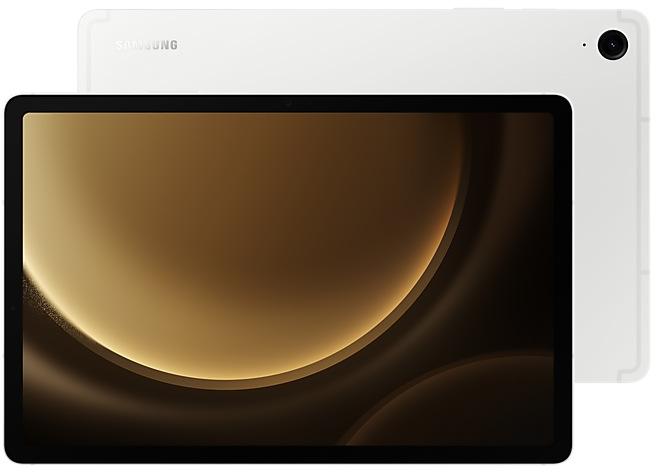
Samsung Galaxy Tab S9 FE X510ZCU8DYJ4 Firmware
Samsung Galaxy Tab S9 FE X510ZCU8DYJ4 is an Android 16 firmware for China (CHN). It is the same firmware configured per region and carrier (CSC). Find your country below, verify the file and download for free. Compared with the previous build X510XXS8CYG1 https://samfirm.shop/build/X510XXS8CYG1: Android updated from Android 15 to Android 16; security patch 2025-08-01 instead of 2025-07-01. A newer build for SM-X510 is available: X510XXSGEZI3 https://samfirm.shop/build/X510XXSGEZI3.
Bootloader binary 8. Flashing firmware with a lower binary is usually blocked by Samsung anti-rollback.
All regional downloads
Pick your region (CSC) to download the matching firmware package.
How to flash X510ZCU8DYJ4
- Install Samsung USB Drivers:Download Official Drivers
- Download Odin Flash Tool:
- X510ZCU8DYJ4 has bootloader binary 8. Your device must run binary 8 or lower: it is the 5th character from the end of your current build number.
- CSC: Use CSC for a clean install, to change the region (CSC code), to downgrade or to repair a device that does not boot.
- HOME_CSC: Use HOME_CSC to update the same model and region while keeping your data. Back up anyway: a failed update can still require a reset.
- The Download Mode key combo depends on the model: see all combos.
What's new in X510ZCU8DYJ4
Easier file sharing with Quick Share
It's never been easier to send and receive files. Tap the Quick Share button in quick settings to get started. You can receive files while the Quick Share screen is open and send files to others directly from Quick Share.
Sticky notes
Add quick annotations on top of documents in Samsung Notes. There's no limit to the number of sticky notes you can add, and it's easy to remove them later without disturbing the original document.
Multi-pane file browsing
It's easier to keep track of file paths when using My Files on a large screen. When you open a new folder, a new pane will be opened to show what's inside so you can easily get back to where you came from.
Redesigned Samsung Internet
Access the features you need quickly. The Samsung Internet menu has been optimized to make it easy to access the features you use most. You can also customize the layout to match your personal preferences.
Enhanced split screen view
While 2 apps are open in split screen view, you can push one app against the edge of the screen to keep it partially visible while giving most of your focus to the other app. Tap the smaller app any time to switch between them quickly.
Open 3 apps in split screen
While your tablet is in landscape orientation, you can now open 3 apps side-by-side. Apps will appear in portrait view, just like they would look on a standard phone screen.
New Reminder interface
The Reminder app has been redesigned with categories shown at the top of the screen, making it easier to see how many reminders are in each category with a quick glance. Custom categories can be hidden with a quick tap to free up more screen space. Tap one more time to make them appear again.
New sample reminders
Discover the power of reminders. Sample reminder templates are now available in the Reminder app. Explore these reminders to see what you can do to manage important tasks in your life.
Add reminders easily
It's never been easier to add new reminders. Just type your reminder into the box at the bottom of the screen. Suggestions will appear as you type that you can tap to save time. You can add checklists, locations, and pictures using the buttons below the text box. Or, if you don't want to type at all, tap the Mic icon for voice input.
Avoid interruption on days off
You now have the option of pausing reminder alerts on weekends in Reminder settings.
Multi-pane view
See more at once on large screens in landscape view. You can view your monthly schedule and the schedule for an individual day side by side.
Manage reminders in Calendar
You can easily create reminders in the Calendar app without opening the Reminder app. Whenever you tap the + button, you'll have the choice of adding an event or a reminder. You can also drag and drop reminders on your calendar to reschedule them.
Add events quickly
When you start adding an event in the quick add menu, you'll get suggestions for event names and times based on your past events. Just tap one of the suggestions to add an event without additional typing.
Avoid interruption on your days off
You now have the option of pausing calendar event alerts on weekends in Calendar settings.
Swipe up or down to open quick controls
Access quick controls in Camera even quicker than before by swiping up or down anywhere in the preview area. In Camera settings, change the Swipe up/down option to open quick controls.
Quick access to Galaxy Buds settings
It's easier than ever before to control your Galaxy Buds. You can now adjust Buds settings directly from your tablet's Settings without the need to open the Galaxy Wearable app.
Enhanced Secure Folder
Keep sensitive apps and data in a separate, protected area of your tablet. You can now set Secure Folder to close apps and prevent notifications when you lock it. You can also completely hide and encrypt your Secure Folder for maximum protection.
Show or hide notification content while locked
The option to show or hide notification content while your tablet is locked is now located in Notifications settings. Choose to show content for quick access to notifications without unlocking your tablet, or choose to hide content to keep your notifications private and prevent others from seeing them.
Pinch and zoom with the Assistant menu
The Assistant menu now provides more ways to zoom in and out on the screen. In addition to dragging with one finger, you can now adjust the zoom level by pressing buttons on the screen.
Control mouse actions with your keyboard
If you can't or don't want to use a mouse, turn on Mouse keys in Accessibility settings to use your physical keyboard to move the mouse pointer, click, hold, and scroll.
Magnify your keyboard
You can now make the keys on the on-screen keyboard larger so they're easier to see and tap. Turn on Magnify keyboard while typing in Magnification settings to try it.
Easily pair Bluetooth hearing aids
You can now pair and connect your Bluetooth hearing aid devices directly on the Hearing aid support screen in Accessibility settings.
New preset routines
Check out the new preset routines for weather and other advanced conditions. Use them as they are, or customize them to meet your needs.
New routine actions
New actions are available for getting data from the Clock, Calendar, and Samsung Notes apps. After you get data, you can use it in other conditions or actions in your routine.
Easily organize alarms
You can now add existing alarms to an alarm group by tapping the + button on the Alarm group screen. You can also add an alarm group to a widget on your Home screen so you can turn all of the alarms in the group on or off with a single tap.
Enhanced app notification settings
You can now choose the pop-up notification style for each app separately in the app’s notification settings.
Revamped weather visuals
The Weather app now provides more rich and realistic images to help you intuitively understand the current weather conditions.
Security patch: August 2025
SMR Aug-2025 fixes 36 vulnerabilities, 1 of them critical. Android Security Bulletin: 28, Samsung-specific issues (SVE): 8.
Device specifications
- Launched withAndroid 13
- Display diagonal27.7 cm (10.9")
- Display resolution2304 x 1440 pixels
- Rear camera resolution8 MP
- Rear camera typeSingle camera
- Front camera resolution12 MP
- Wi-Fi standardWi-Fi 6 (802.11ax)
- Weight523 g
Specifications of SM-X510N, a regional variant of the same device. Chipset and SIM lines are left out: they can differ by region.
Frequently Asked Questions
Other builds and changelog for Samsung Galaxy Tab S9 FE
• Security
The device is protected with improved security.
These changes may vary depending on the model, country, or network operator of the customer environment.
- X510XXSGEZI3Sep 22, 2026
- X510XXSFEZH5Sep 10, 2026
- X510ZCSFEZH5Sep 14, 2026
- X510XXSEEZG3Jul 30, 2026
- X510XXSDEZF1Jun 30, 2026
- X510ZCSDEZF1Jul 7, 2026
Fresh new look
One UI seamlessly integrates into your daily routine by combining immersive visuals with meaningful personalization for a more refined and sophisticated design. Transparent blur effects add depth and make content easier to navigate, while floating elements react organically to your workflow for a more focused experience. Through familiar and intuitive data visualization, One UI delivers a design that feels both personal and relatable, helping you focus...
- X510XXUCEZE4Jun 1, 2026
- X510ZCUCEZE4Jun 4, 2026
• Security
The device is protected with improved security.
These changes may vary depending on the model, country, or network operator of the customer environment.
- X510XXSCDZD6May 14, 2026
- X510ZCSCDZD6May 18, 2026
- X510XXSBDZB4Mar 9, 2026
- X510ZCSBDZB4Mar 10, 2026
- X510XXSADZA3Feb 5, 2026
- X510ZCSADZA3Feb 5, 2026
- X510XXS9DYK1Dec 18, 2025
- X510ZCS9DYK1Dec 23, 2025
Enhanced Lock screen widgets
Do more on your Lock screen with brief widgets. 2 x 2 size widgets are now available, and the widget area is now larger so you can add even more widgets. You can choose either a horizontal or vertical widget layout.
Check stock prices without unlocking
Stocks you follow on Google Finance with big price changes will appear on your Now bar at the end of the trading day.
Easier file sharing with Quick Share
I...
Easier file sharing with Quick Share
It's never been easier to send and receive files. Tap the Quick Share button in quick settings to get started. You can receive files while the Quick Share screen is open and send files to others directly from Quick Share.
Sticky notes
Add quick annotations on top of documents in Samsung Notes. There's no limit to the number of sticky notes you can add, and it's easy to remove them later without disturbing the original...
Show 2 older builds
• Security
The device is protected with improved security.
These changes may vary depending on the model, country, or network operator of the customer environment.
- X510XXS8CYG1Jul 22, 2025
- X510ZCS8CYG1Jul 28, 2025