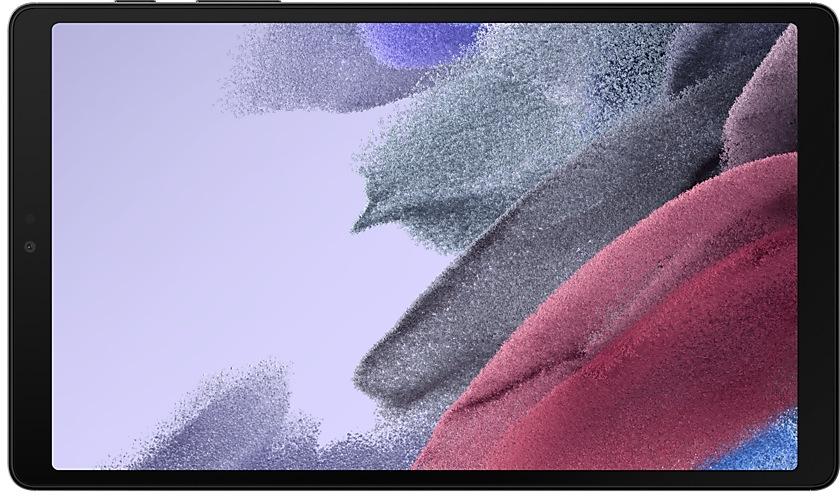
Samsung Galaxy Tab A7 Lite T220XXS5CWL1 Firmware
Samsung Galaxy Tab A7 Lite T220XXS5CWL1 is an Android 13 firmware for Turkey (TUR). It is the same firmware configured per region and carrier (CSC). Find your country below, verify the file and download for free. Compared with the previous build T220XXS5CWK2, Android and the bootloader binary are unchanged, so you can switch between the two in both directions. A newer build for SM-T220 is available: T220XXSAEYE4.
Bootloader binary 5. Flashing firmware with a lower binary is usually blocked by Samsung anti-rollback.
All regional downloads
Pick your region (CSC) to download the matching firmware package.
Device specifications
- Display diagonal22.1 cm (8.7")
- Display resolution1340 x 800 pixels
- Processor frequency1.8 GHz
- Processor familyMediatek
- Processor modelMT8768
- Rear camera resolution8 MP
- Rear camera typeSingle camera
- Front camera resolution2 MP
- Wi-Fi standardWi-Fi 5 (802.11ac)
- Weight366 g
What's new in T220XXS5CWL1
• The security of your device has been improved.
How to flash T220XXS5CWL1
- Install Samsung USB Drivers:Download Official Drivers
- Download Odin Flash Tool:
- T220XXS5CWL1 has bootloader binary 5. Your device must run binary 5 or lower: it is the 5th character from the end of your current build number.
- CSC: Use CSC for a clean install, to change the region (CSC code), to downgrade or to repair a device that does not boot.
- HOME_CSC: Use HOME_CSC to update the same model and region while keeping your data. Back up anyway: a failed update can still require a reset.
- The Download Mode key combo depends on the model: see all combos.
Frequently Asked Questions
Other builds and changelog for Samsung Galaxy Tab A7 Lite
• Overall stability of functions improved.
• Overall device performance has been improved.
• The security of your device has been improved.
New wallpaper editing features
Decorate your wallpaper however you like. When you select an image to use as your wallpaper, you can now apply frames and effects.
Customize alarm alerts
Use an image, video, or AR emoji to create your own custom alert screens for each alarm. You can even change the layout of where the alarm information appears on the screen.
More stickers to personalize your calendar
You can now add up to 2 stickers for each date on y...
Show 15 older builds
New wallpaper editing features
Decorate your wallpaper however you like. When you select an image to use as your wallpaper, you can now apply frames and effects.
Customize alarm alerts
Use an image, video to create your own custom alert screens for each alarm. You can even change the layout of where the alarm information appears on the screen.
More stickers to personalize your calendar
You can now add up to 2 stickers for each date on your calendar....
New button layout
The quick panel has a new layout that makes it easier to access the features you use most. Wi-Fi and Bluetooth now have their own dedicated buttons at the top of the screen, while visual features, like Dark mode and Eye comfort shield have been moved to the bottom. Other quick settings buttons appear in a customizable area in the middle.
Instantly access the full quick panel
By default, a compact quick panel with notifications ap...
New button layout
The quick panel has a new layout that makes it easier to access the features you use most. Wi-Fi and Bluetooth now have their own dedicated buttons at the top of the screen, while visual features, like Dark mode and Eye comfort shield have been moved to the bottom. Other quick settings buttons appear in a customizable area in the middle.
Instantly access the full quick panel
By default, a compact quick panel with notifications ap...
Better app previews on the Recents screen
The Recents screen now shows apps as they will appear after you open them. You can easily see if an app is opened in split screen, full screen, or as a pop-up.
Easily switch from pop-up view to split screen
Press and hold the handle at the top of the pop-up window, then drag the app to the side of the screen where you want it to be shown.
Restore pop-ups snapped to the edge of the screen
Drag an app in pop-up view t...
New button layout
The quick panel has a new layout that makes it easier to access the features you use most. WLAN and Bluetooth now have their own dedicated buttons at the top of the screen, while visual features, like Dark mode and Eye comfort shield have been moved to the bottom. Other quick settings buttons appear in a customizable area in the middle.
Instantly access the full quick panel
By default, a compact quick panel with notifications app...
• The security of your device has been improved.
Better app previews on the Recents screen
The Recents screen now shows apps as they will appear after you open them. You can easily see if an app is opened in split screen, full screen, or as a pop-up.
Easily switch from pop-up view to split screen
Press and hold the handle at the top of the pop-up window, then drag the app to the side of the screen where you want it to be shown.
Restore pop-ups snapped to the edge of the screen
Drag an app in pop-up v...