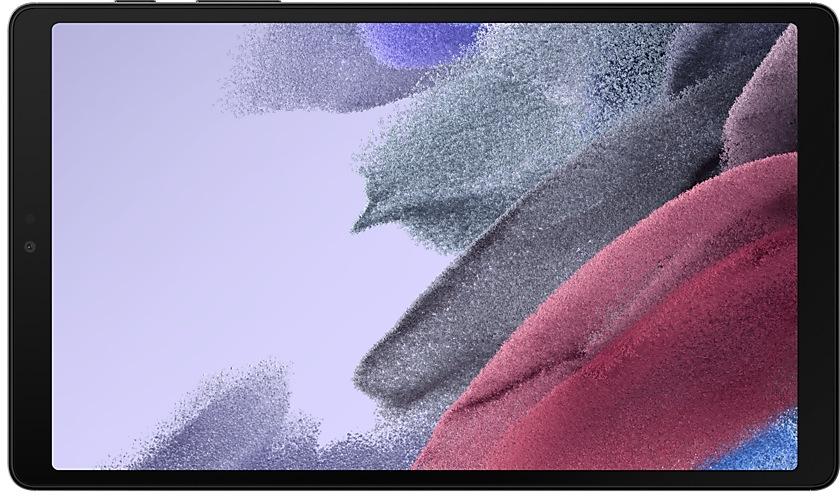
Download Samsung Firmware SM-T220
Samsung Galaxy Tab A7 Lite
The latest firmware for Samsung Galaxy Tab A7 Lite (SM-T220) is T220XXSAEYE4 with Android 14, released on June 2, 2025 for 40 regions (CSC). Every official firmware build for SM-T220, newest first: one row per build with all regions (CSC) that received it.
- Builds
- 72 builds
- Regions (CSC)
- 41 regions
Firmware builds for SM-T220
- 40 regions
- CHN
- 40 regions
- CHN
- 40 regions
- CHN
- TUR
- 39 regions
- CHN
- TUR
- 39 regions
- AROCHOCOOEONGTOMXO+5
- TUR
- 28 regions
- CHN
- TUR
- BRITGY
- 26 regions
- CHN
- TUR
- CHN
- 28 regions
- AROCHOCOOEONGTOMXO+5
- INSINU
- 24 regions
- INSINU
- 22 regions
- CHN
- CHN
- INSINU
- 39 regions
- 38 regions
- KOO
- AROCHOCOOEONGTOMXO+5
- CHN
- BRITGY
- CALMYMTHLXMEXNZXSA+1
- INSINUNPBNPLSLK
- 13 regions
- KOO
- CALMYMTHLXMEXNZXSA+1
- INSINUNPBNPLSLK
- AROCHOCOOEONGTOMXO+5
- 16 regions
- BRIEUXKOOTGY
- CHN
- AROCHOCOOEONGTOMXO+5
- 19 regions
- CALKOOMYMTHLXMEXNZ+2
- CHN
Each firmware build has its own page at https://samfirm.shop/build/{PDA}, where {PDA} is the build number from the list above. Example: https://samfirm.shop/build/T220XXSAEYE4
SM-T220 update history
SM-T220 started on Android 11 and has received 3 major Android upgrades; it now runs Android 14. The newest build, T220XXSAEYE4, was released on June 2, 2025 with the May 2025 security patch. No new build has appeared for 17 months, so regular updates for this model have most likely ended. Builds of this model reach 41 regions (CSC); KOO (South Korea) usually gets a new build first (56% of recent builds).
Device specifications
- Display diagonal
- 22.1 cm (8.7")
- Display resolution
- 1340 x 800 pixels
- Processor frequency
- 1.8 GHz
- Processor family
- Mediatek
- Processor model
- MT8768
- Rear camera resolution
- 8 MP
- Rear camera type
- Single camera
- Front camera resolution
- 2 MP
- Wi-Fi standard
- Wi-Fi 5 (802.11ac)
- Weight
- 366 g
Changelog for SM-T220
• Security
The device is protected with improved security.
• Overall stability of functions improved.
• Overall device performance has been improved.
• The security of your device has been improved.
• The latest Android security patch has been applied.
- Device security has been further enhanced.
• The security of your device has been improved.
New wallpaper editing features
Decorate your wallpaper however you like. When you select an image to use as your wallpaper, you can now apply frames and effects.
Customize alarm alerts
Use an image, video to create your own custom alert screens for each alarm. You can even change the layout of where the alarm information appears on the screen.
More stickers to personalize your calendar
You can now add up to 2 stickers for each date on your calendar....
Show 25 older builds
New wallpaper editing features
Decorate your wallpaper however you like. When you select an image to use as your wallpaper, you can now apply frames and effects.
Customize alarm alerts
Use an image, video, or AR emoji to create your own custom alert screens for each alarm. You can even change the layout of where the alarm information appears on the screen.
More stickers to personalize your calendar
You can now add up to 2 stickers for each date on y...
• Security
The device is protected with improved security.
• The latest Android security patch has been applied.
- Device security has been further enhanced.
• The security of your device has been improved.
Better app previews on the Recents screen
The Recents screen now shows apps as they will appear after you open them. You can easily see if an app is opened in split screen, full screen, or as a pop-up.
Easily switch from pop-up view to split screen
Press and hold the handle at the top of the pop-up window, then drag the app to the side of the screen where you want it to be shown.
Restore pop-ups snapped to the edge of the screen
Drag an app in pop-up view t...
New button layout
The quick panel has a new layout that makes it easier to access the features you use most. Wi-Fi and Bluetooth now have their own dedicated buttons at the top of the screen, while visual features, like Dark mode and Eye comfort shield have been moved to the bottom. Other quick settings buttons appear in a customizable area in the middle.
Instantly access the full quick panel
By default, a compact quick panel with notifications ap...
New button layout
The quick panel has a new layout that makes it easier to access the features you use most. WLAN and Bluetooth now have their own dedicated buttons at the top of the screen, while visual features, like Dark mode and Eye comfort shield have been moved to the bottom. Other quick settings buttons appear in a customizable area in the middle.
Instantly access the full quick panel
By default, a compact quick panel with notifications app...
New button layout
The quick panel has a new layout that makes it easier to access the features you use most. Wi-Fi and Bluetooth now have their own dedicated buttons at the top of the screen, while visual features, like Dark mode and Eye comfort shield have been moved to the bottom. Other quick settings buttons appear in a customizable area in the middle.
Instantly access the full quick panel
By default, a compact quick panel with notifications ap...
• The security of your device has been improved.
• The security of your device has been improved.
• The latest Android security patch has been applied.
- Device security has been further enhanced.
• The latest Android security patch has been applied.
- Device security has been further enhanced.
• The latest Android security patch has been applied.
- Device security has been further enhanced.
• The security of your device has been improved.
Better app previews on the Recents screen
The Recents screen now shows apps as they will appear after you open them. You can easily see if an app is opened in split screen, full screen, or as a pop-up.
Easily switch from pop-up view to split screen
Press and hold the handle at the top of the pop-up window, then drag the app to the side of the screen where you want it to be shown.
Restore pop-ups snapped to the edge of the screen
Drag an app in pop-up v...
Better app previews on the Recents screen
The Recents screen now shows apps as they will appear after you open them. You can easily see if an app is opened in split screen, full screen, or as a pop-up.
Easily switch from pop-up view to split screen
Press and hold the handle at the top of the pop-up window, then drag the app to the side of the screen where you want it to be shown.
Restore pop-ups snapped to the edge of the screen
Drag an app in pop-up view t...
Better app previews on the Recents screen
The Recents screen now shows apps as they will appear after you open them. You can easily see if an app is opened in split screen, full screen, or as a pop-up.
Easily switch from pop-up view to split screen
Press and hold the handle at the top of the pop-up window, then drag the app to the side of the screen where you want it to be shown.
Restore pop-ups snapped to the edge of the screen
Drag an app in pop-up v...
· Device stability improvements, bug fixes.
· New and / or enhanced features.
· Further improvements to performance.
· The security of your device has been improved.
• The security of your device has been improved.
• The latest Android security patch has been applied.
- Device security has been further enhanced.
· The security of your device has been improved.
· The security of your device has been improved.
One UI 5.1 Update
One UI 5.1 takes your tablet to the next level with new Gallery features as well as productivity and personalization enhancements.
Quickly change the color tone for selfies
It's easier to change the color tone of your selfies using the Effects button on the side of the screen.
Revamped info display
When you swipe up while viewing a picture or video in your Gallery, you can see when and where the picture was taken, which device took the picture, where the...
• Overall stability of your device has been improved.
• The security of your device has been improved.
11 retail codes (SKU)
Box codes of SM-T220 for different colors and markets. Firmware is chosen by the model code SM-T220 and your region (CSC), not by the SKU.
- SM-T220NZSAEUA
- SM-T220NZAAEUE
- SM-T220NZAAXAR
- SM-T220NZAAEUA
- SM-T220NZAAEUH
- SM-T220NZSAEUB
- SM-T220NZAAEUB
- SM-T220NZSAEUH
- SM-T220NZAATUR
- SM-T220NZSAEUE
- SM-T220NZSATUR
Similar Models
- https://samfirm.shop/model/SM-T290N

Samsung Galaxy Tab A 8.0, 64GB, Black
SM-T290N
- https://samfirm.shop/model/SM-T537A

Samsung Galaxy Tab 4 10.1 LTE (AT&T)
SM-T537A
- https://samfirm.shop/model/SM-T800X

Samsung Galaxy TabS 10.5
SM-T800X
- https://samfirm.shop/model/SM-T807V

Samsung Galaxy TabS 10.5
SM-T807V
- https://samfirm.shop/model/SM-T230X

Samsung Galaxy Tab4 7.0
SM-T230X
- https://samfirm.shop/model/SM-T230NY

Samsung Galaxy Tab4 7.0
SM-T230NY
- https://samfirm.shop/model/SM-T237V

Samsung Galaxy Tab4 7.0
SM-T237V
- https://samfirm.shop/model/SM-T232

Samsung Galaxy Tab4 7.0
SM-T232


Frequently Asked Questions
What is the latest Android version for SM-T220?
The newest firmware for SM-T220 runs Android 14: build T220XXSAEYE4, released on June 2, 2025.
When did SM-T220 get its last update?
The latest build for SM-T220, T220XXSAEYE4, was released on June 2, 2025 (1 year ago).
How often does SM-T220 get updates?
SM-T220 has had no new firmware for 17 months, so regular updates have most likely ended.
Is the firmware for SM-T220 official?
Yes, all firmware files for SM-T220 are 100% official, original, and obtained directly from Samsung servers.
How to flash Samsung SM-T220 using Odin?
To flash SM-T220, you need to download the appropriate firmware, put your device into Download Mode, and use the Odin tool to load the BL, AP, CP, and CSC files.
Can I downgrade the Android version on SM-T220?
Downgrading is only possible if the bootloader version (binary bit) of the old firmware matches the current one. Always check the binary version before flashing SM-T220.