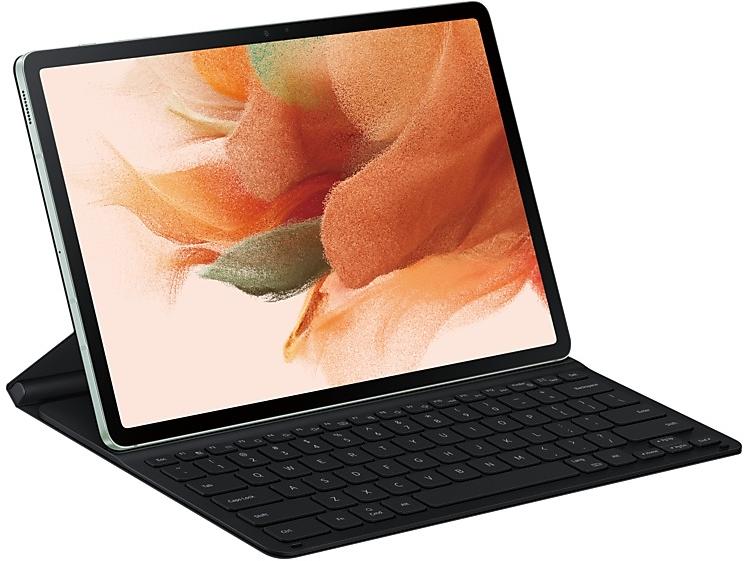
Samsung Galaxy Tab S7 FE T733ZCU1BVJ4 Firmware
Samsung Galaxy Tab S7 FE T733ZCU1BVJ4 is an Android 12 firmware for China (CHN). It is the same firmware configured per region and carrier (CSC). Find your country below, verify the file and download for free. Compared with the previous build T733XXS1BVJ2 https://samfirm.shop/build/T733XXS1BVJ2, Android and the bootloader binary are unchanged, so you can switch between the two in both directions. A newer build for SM-T733 is available: T733XXS9DYF1 https://samfirm.shop/build/T733XXS9DYF1.
Bootloader binary 1. Flashing firmware with a lower binary is usually blocked by Samsung anti-rollback.
All regional downloads
Pick your region (CSC) to download the matching firmware package.
| Model | Region | CSC Version | Release date | Size | File name | Download |
|---|---|---|---|---|---|---|
| SM-T733 |
CHN China | T733CHN1BVJ4 | 2022-10-25 | 5.024 GiB | SM-T733_2_20221017164831_y1b5aaxc7w_fac.zip | Download |
No matching downloads
How to flash T733ZCU1BVJ4
- T733ZCU1BVJ4 has bootloader binary 1. Your device must run binary 1 or lower: it is the 5th character from the end of your current build number.
- CSC: Use CSC for a clean install, to change the region (CSC code), to downgrade or to repair a device that does not boot.
- HOME_CSC: Use HOME_CSC to update the same model and region while keeping your data. Back up anyway: a failed update can still require a reset.
- The Download Mode key combo depends on the model: see all combos.
What's new in T733ZCU1BVJ4
Switch between apps quickly
A taskbar now appears at the bottom of the screen for quicker navigation between apps.
Quickly open apps in split screen or a pop-up window
Drag apps from the taskbar or Recents screen to open them however is most convenient for you. Drag to the top, bottom, left, or right edge of the screen to open in split screen. Drag to the center of the screen to open in a pop-up.
Open app pairs quickly
Pair apps that you often use together, then add them to the Home screen or taskbar so you can open them in split screen with just a single tap.
Easily switch from pop-up view to split screen
When you're using an app in pop-up view, just tap the split screen button inside the window handle. You'll be able to choose a second app to open alongside of it.
Change your view with a gesture
Switch from full screen to split screen view by swiping inward with two fingers from the left side, right side, or bottom of the screen. Switch from full screen to pop-up view by swiping inward with one finger from either corner at the top of the screen. Gestures can be turned on or off in Settings.
Show app names in the Apps edge panel
Turn on Show app names to make app names appear below the app icons.
Extract text from any image or screen
Extract text using Samsung Keyboard, Internet, Gallery, or whenever you take a screenshot. Paste the result into a message, email, or document instead of typing.
Korean, English, French, Italian, German, Portuguese, Spanish, and Chinese text can be extracted.
Get suggestions based on text in images
When text appears in an image in Gallery, Camera, or other apps, actions will be recommended based on the text. For example, if you take a picture of a sign with a phone number or web address on it, you can tap to call the number or visit the site.
Easily see who’s calling
Set a different call background for each contact so you easily see who's calling with just a quick glance.
Rearrange expression buttons
Touch and hold the emoji, sticker, and other buttons to rearrange them.
Enter kaomoji directly from the keyboard
Spice up your chats and texts with preset Japanese-style facial expressions created using keyboard symbols. (*^.^*)
More powerful search in My Files
Choose whether to search all files or only files in the current folder. You can also choose between searching only file names or searching information inside of files, such as text in documents or location information in images. When your search is complete, you can sort the results by name, date, size, or file type.
Drag and drop bookmarks between folders
Keep your Samsung Internet bookmarks organized by dragging and dropping them between folders.
Edit your Lock screen wallpaper collection
After selecting a group of images to use for your Lock screen wallpaper, you can easily add or remove images later.
Message
Provide the feature to convert normal text messages to Rich Media Card and app messages.
Wechat
Provide intelligent classification, search, and favorite image when choosing pictures to send to friends/channel in WeChat app
JD IOT (京东小家)
IoT App to connected to home appliances, etc.
Call & text on other devices
If the tablet and phone uses the same WLAN network, you can send or receive a call or a text message on the tablet. Don't miss important calls and messages while enjoying your tablet.
※ In order to use “Call & text on other devices” feature, both the tablet and phone must support this feature.
Device specifications
- Launched withAndroid 11
- Display diagonal31.5 cm (12.4")
- Display resolution2560 x 1600 pixels
- Processor frequency2.4 GHz
- Processor familySnapdragon
- Processor model778G
- Rear camera resolution8 MP
- Rear camera typeSingle camera
- Front camera resolution5 MP
- Wi-Fi standardWi-Fi 6 (802.11ax)
- Weight608 g
Frequently Asked Questions
Other builds and changelog for Samsung Galaxy Tab S7 FE
• Security
The device is protected with improved security.
These changes may vary depending on the model, country, or network operator of the customer environment.
• Security
The device is protected with improved security.
- T733XXS9DYE1Jun 2, 2025
- T733ZCS9DYE1Jun 4, 2025
- T733XXS8DXJ1Nov 4, 2024
• The latest Android security patch has been applied.
- Device security has been further enhanced.
• The security of your device has been improved.
• The latest Android security patch has been applied.
- Device security has been further enhanced.
Show 13 older builds
New wallpaper editing features
Decorate your wallpaper however you like. When you select an image to use as your wallpaper, you can now apply frames and effects.
Customize alarm alerts
Use an image, video, or AR emoji to create your own custom alert screens for each alarm. You can even change the layout of where the alarm information appears on the screen.
More stickers to personalize your calendar
You can now add up to 2 stickers for each date on y...
- T733XXU6DXE1May 27, 2024
- T733ZCU6DXE1May 31, 2024
• The security of your device has been improved.
New button layout
The quick panel has a new layout that makes it easier to access the features you use most. Wi-Fi and Bluetooth now have their own dedicated buttons at the top of the screen, while visual features, like Dark mode and Eye comfort shield have been moved to the bottom. Other quick settings buttons appear in a customizable area in the middle.
Instantly access the full quick panel
By default, a compact quick panel with notifications ap...
New button layout
The quick panel has a new layout that makes it easier to access the features you use most. WLAN and Bluetooth now have their own dedicated buttons at the top of the screen, while visual features, like Dark mode and Eye comfort shield have been moved to the bottom. Other quick settings buttons appear in a customizable area in the middle.
Instantly access the full quick panel
By default, a compact quick panel with notifications app...
Better app previews on the Recents screen
The Recents screen now shows apps as they will appear after you open them. You can easily see if an app is opened in split screen, full screen, or as a pop-up.
Easily switch from pop-up view to split screen
Press and hold the handle at the top of the pop-up window, then drag the app to the side of the screen where you want it to be shown.
Restore pop-ups snapped to the edge of the screen
Drag an app in pop-up view t...
- T733XXU5CWK1Nov 23, 2023
- T733XXU5CWI4Oct 9, 2023
Better app previews on the Recents screen
The Recents screen now shows apps as they will appear after you open them. You can easily see if an app is opened in split screen, full screen, or as a pop-up.
Restore pop-ups snapped to the edge of the screen
Drag an app in pop-up view to the edge of the screen to snap it to the edge and keep it out of the way. When you need it again, tap anywhere on the pop-up to bring it back to its previous location.
Taskbar...
• The security of your device has been improved.
• Overall stability of your device has been improved.
• The security of your device has been improved.
• Overall stability of your device has been improved.
• The latest Android security patch has been applied.
- Device security has been further enhanced.
• Security
The device is protected with improved security.